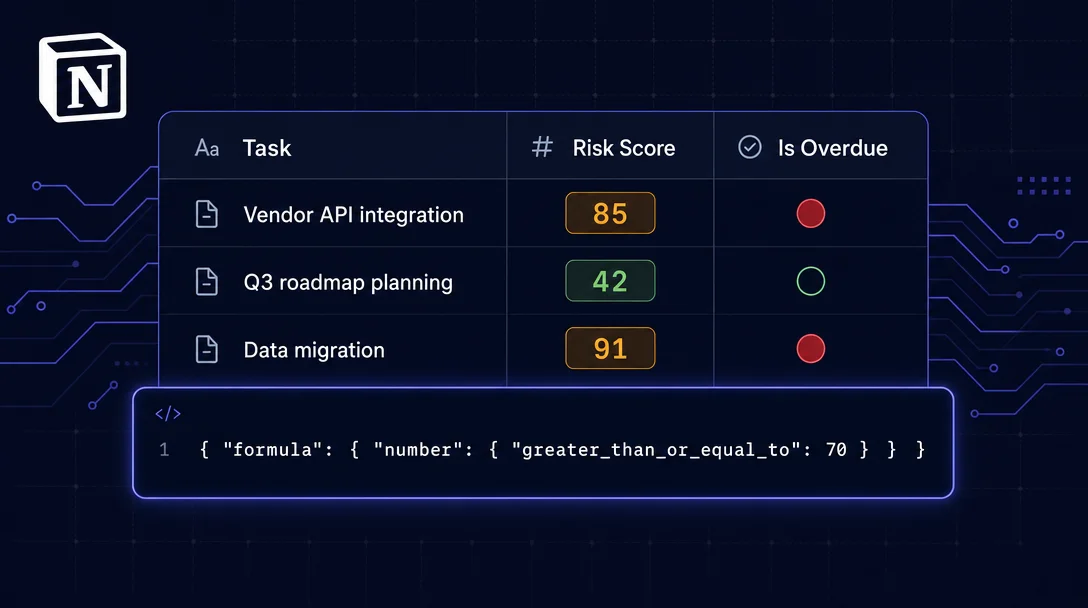
Notion API formula filters — query computed properties without fetching a single extra row
The Notion API's `formula` filter key lets you query against computed formula properties server-side across four result sub-types — checkbox, date, number, and string. This tip walks through building two Formulas 2.0 properties (Risk Score and Is Overdue) in a task database, constructing a compound filter that surfaces high-risk sprint items in one request, and documents five production gotchas including the UI-vs-API creation trap, UTC date defaults, silent type-change breakage, Formulas 2.0 initialization lag, and floating-point precision.

| Requirement | Detail |
|---|---|
| Notion plan | Free or higher (Formulas 2.0 available on all plans) |
| API version | 2022-06-28 or 2025-09-03 — formula filter syntax is identical in both 1 |
| Formula property | Must be created in the Notion UI first (see Gotcha 1) |
| Notion AI for formulas | Business or Enterprise plan only |
| Time to build | ~30 minutes for two formula properties + one compound filter query |
Notion databases are great at storing facts. They're weak at telling you which facts currently matter. The usual workaround is fetching everything and computing in application code — but that breaks down fast once a sprint board hits 200+ rows.
The
formula filter key, available since the initial public API, lets you query against a computed formula property server-side. Notion evaluates the formula for every row and returns only the matching ones. Combined with Formulas 2.0's let(), ifs(), and map() functions, you can bake non-trivial PM logic — risk scores, overdue flags, sprint health — directly into the database and query it precisely.Two formula properties to build first
Before writing a single API call, create the properties in the Notion UI. The API
formula filter key requires that Notion can resolve the formula's result type — this resolution is reliable only when the property was set up through the UI editor. 2Property A — "Risk Score" (number result)
Add a Formula property to your task database and paste this expression:
if(
  prop("Due Date") < now() and prop("% Complete") < 50,
  100 - prop("% Complete"),
  0
)
Returns
0–100. Higher means riskier: a task that is past due and less than half done scores near 100. Tasks on track score 0. 3Property B — "Is Overdue" (checkbox result)
prop("Due Date") < now() and prop("% Complete") < 100Returns
true or false. 3 The expression must evaluate to an actual boolean — not the number 1, not the string "true". The checkbox filter sub-type requires a real boolean. 4
The formula filter key: all four result types
The filter object follows one rule: the sub-key inside
formula must match the property's actual return type. 6{
"property": "<formula property name>",
"formula": {
"<checkbox | date | number | string>": { /* type-specific condition */ }
}
}Each sub-type accepts the same conditions as the equivalent native property:
| Sub-type | Available operators |
|---|---|
checkbox | equals, does_not_equal (boolean values) |
number | equals, does_not_equal, greater_than, less_than, greater_than_or_equal_to, less_than_or_equal_to, is_empty, is_not_empty |
date | after, before, equals, on_or_after, on_or_before, is_empty, is_not_empty, relative values: "today", "tomorrow", "one_week_ago", "one_week_from_now" |
string | equals, does_not_equal, contains, does_not_contain, starts_with, ends_with, is_empty, is_not_empty |
All four sub-types also support
is_empty and is_not_empty, which are useful for catching formulas that return Formulas 2.0's empty() value. 6 7Building the compound query
A formula filter counts as one leaf node in the compound
and/or tree — it does not consume an extra nesting level. The internal { "number": { ... } } structure is just the filter condition's schema, not a nesting layer. 6This query surfaces all high-risk overdue tasks in Sprint 12 without touching your application code:
{
  "filter": {
    "and": [
      {
        "property": "Risk Score",
        "formula": { "number": { "greater_than_or_equal_to": 70 } }
      },
      {
        "property": "Is Overdue",
        "formula": { "checkbox": { "equals": true } }
      },
      {
        "property": "Sprint",
        "select": { "equals": "Sprint 12" }
      }
    ]
  }
}
Three leaf filters inside one
and — one nesting level, well within the two-level limit. 7You can mix formula filters with relation and rollup filters in the same compound chain. For example, to also require that the parent project's total effort exceeds a threshold, wrap the above in an outer
and with a rollup filter — that uses level two of your allowed nesting.As a Notion Worker (TypeScript):
const results = await notion.databases.query({
  database_id: TASK_DB_ID,
  filter: {
    and: [
      {
        property: "Risk Score",
        formula: { number: { greater_than_or_equal_to: 70 } },
      },
      {
        property: "Is Overdue",
        formula: { checkbox: { equals: true } },
      },
      {
        property: "Sprint",
        select: { equals: "Sprint 12" },
      },
    ],
  },
});
Pagination works normally: use
start_cursor + page_size (max 100 per page). The formula evaluation happens server-side with no special pagination behavior. 6Loading content card…
Optional: a richer formula for dashboard badges
If you want visible status labels in the database itself — not just filterable values — Formulas 2.0's
let() and style() give you colored text badges. Here is a sprint health formula that compares actual completion rate against time-adjusted expected rate:let(
completionRate,
prop("Done Tasks").length() / prop("Total Tasks").length() * 100,
daysRemaining,
dateBetween(prop("Sprint End"), now(), "days"),
totalDays,
dateBetween(prop("Sprint End"), prop("Sprint Start"), "days"),
let(
expectedRate,
(totalDays - daysRemaining) / totalDays * 100,
ifs(
empty(prop("Sprint Start")), style("⚪ Not started", "gray"),
completionRate >= 100, style("✅ Complete", "green", "b"),
completionRate >= expectedRate,
style("🟢 On Track (" + round(completionRate) + "% vs " + round(expectedRate) + "% expected)", "green"),
completionRate >= expectedRate - 15,
style("🟡 At Risk (" + round(completionRate) + "% vs " + round(expectedRate) + "% expected)", "yellow"),
style("🔴 Off Track (" + round(completionRate) + "% vs " + round(expectedRate) + "% expected)", "red", "b")
)
)
)let() defines a local variable once, so the same dateBetween() calculation does not repeat across branches. 8 To filter this in the API, the formula returns a string, so use { "formula": { "string": { "contains": "Off Track" } } }. 6Expected outcome
A task database with these two formula properties responds to targeted API queries instead of full scans. Sprint 12's high-risk overdue list comes back in one request — no post-fetch filtering, no extra rollup columns to maintain. Add a Notion Worker (Notion's hosted TypeScript runtime for scheduled and webhook-triggered automation scripts) that runs this query on a schedule and posts the results to Slack, and you have a zero-manual-update sprint risk digest. 9
Gotchas
Create formula properties in the Notion UI, not via the API. When a database and its formula property are created programmatically, the Notion backend may fail to resolve the formula's return type and return HTTP 400:
"Unable to filter based on a formula of unknown type". The same formula expression set through the UI works without issue. 10 2 If you hit this error, open the property in Notion, re-enter the formula expression, and save.Date formula comparisons default to UTC. A formula using
now() reflects the user's local time, but filtering with { "date": { "after": "2026-06-01" } } compares against 2026-06-01T00:00:00Z. For teams in UTC-negative timezones this produces off-by-one-day errors at day boundaries. Fix: include an explicit timezone offset in the comparison value — "2026-06-01T00:00:00-07:00" — or use relative values like "today" which Notion evaluates server-side with your workspace timezone. 7Changing a formula's return type silently breaks existing filters. If you modify
prop("Score") * 2 (number) to "Score: " + format(prop("Score")) (string), any API filter using { "formula": { "number": ... } } starts returning HTTP 400. Notion does not warn you. Name formula properties with the type in parentheses — e.g., Risk Score (num) — so the contract is visible in the property panel. 4New rows briefly appear empty to formula filters. In Formulas 2.0, a formula property is momentarily empty in the split-second after a new row is created — long enough for a database view's filter to see the formula as returning
empty before the computation finishes. Thomas Frank notes: "any filter on a formula value needs to be paired with an 'or' condition that will be satisfied during that split-second moment." 4 For API queries this rarely matters (you query on-demand, not in reaction to row creation), but for Notion UI views filtered on a formula, add an or branch that accepts is_empty as well.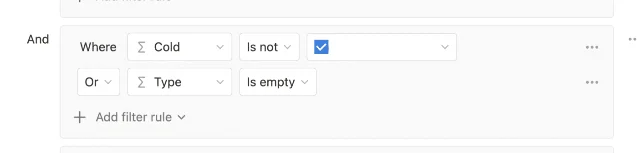
is_empty — the pattern Thomas Frank recommends for views filtered on formula properties. 4Floating-point formulas require range operators. A formula that computes
1/3 returns approximately 0.3333333333333333. Filtering with { "number": { "equals": 0.333 } } will not match. Use greater_than_or_equal_to + less_than_or_equal_to for fuzzy ranges, or call round() inside the formula expression to control precision before it reaches the filter. 9Cover image: AI-generated illustration
References
- 1Notion: Upgrade guide 2025-09-03
- 2ultimate-notion GitHub issue #56: Unable to filter formula of unknown type
- 3Notion: Intro to formulas
- 4Thomas Frank: Formulas in database filters
- 5Work Management Hub: Notion Formulas 2.0 guide
- 6Notion API: Filter database entries
- 7Notion API: Filter data source entries (2025-09-03)
- 8Notion: Formulas 2.0 — what's changed
- 9Thomas Frank: Notion Formulas 2.0 cheat sheet
- 10n8n GitHub issue #27420: Notion formula filter sub-type failure
Add more perspectives or context around this Post.